


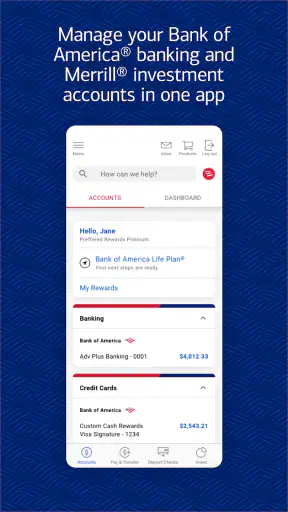
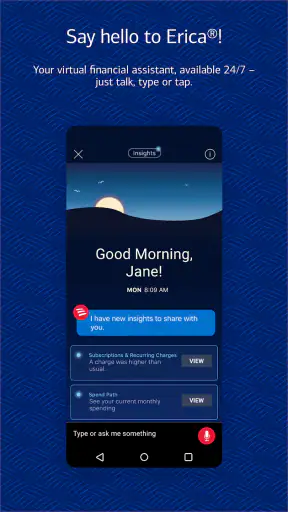
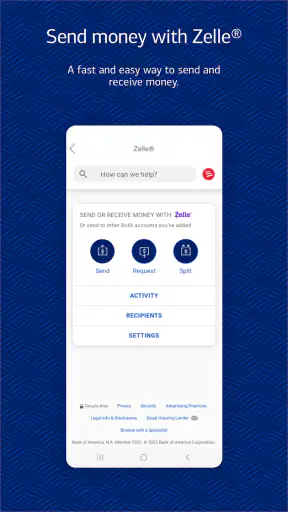
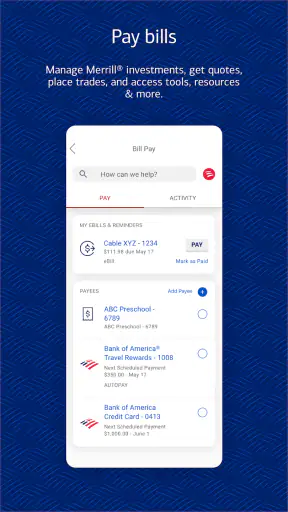
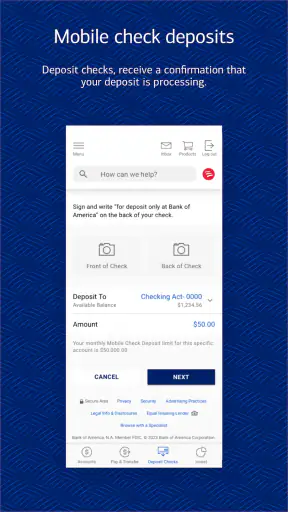
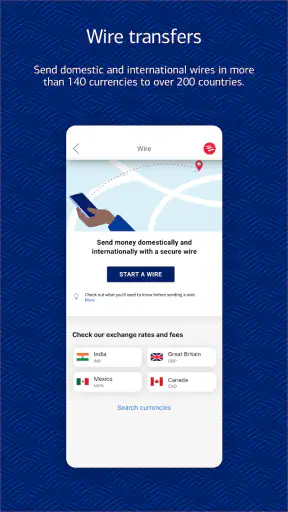
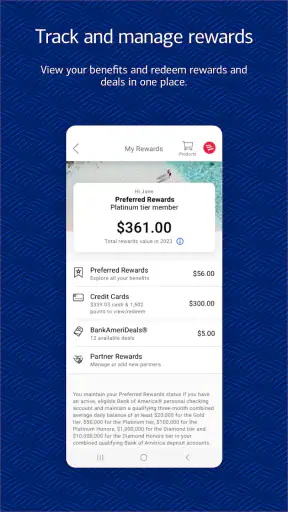
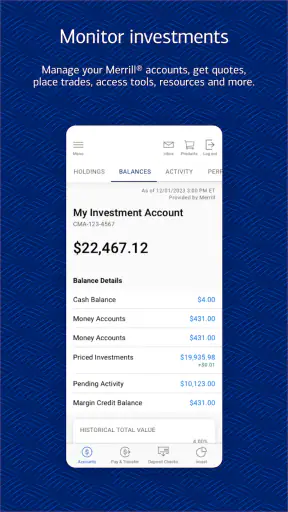
If you are opening a bank account app for the first time, you probably want one simple result: check your money, move it safely, and understand what is happening without feeling lost. Bank of America Mobile Banking is built around that everyday need. I found it most useful as a central place for banking, budgeting, and investing, especially if you already use Bank of America and want to handle routine tasks from your phone instead of visiting a branch.
The app is free, developed by Bank of America, and available for Everyone. It is a finance app rather than a general-purpose budgeting tool, so its strongest experience comes from connecting you with your Bank of America relationship. It has an average rating of 4.6 from around 1.2 million ratings and has passed 50 million installs, which gives a good sense of how widely it is used. The current version is 26.08.02 and requires Android 11 or later.
What to expect when you open it
My first impression is that this is designed less like a financial education app and more like a practical control panel. The main value is getting to the information and actions you need quickly: viewing account activity, checking balances, managing payments, and moving between banking areas. That makes it a natural fit for someone who wants fewer separate tools in daily life.
The app is particularly convenient when your financial activity already sits with Bank of America. Instead of checking a browser, keeping separate notes for bills, and using another application to watch investments, you can begin with one financial home on your phone. That does not mean every user will prefer this approach. Someone who wants a bank-neutral budgeting service that combines accounts from many institutions may find a dedicated budgeting app more flexible.
I would also set expectations around the word “investing.” Having investing available in the same banking environment is useful, but it does not automatically turn the app into a complete learning platform for new investors. If your main goal is to study markets, compare independent investment services, or build a detailed long-term plan, a specialized investment application may offer a deeper experience. For checking and managing your existing relationship, though, the combined layout is sensible.
The best first goal is not to explore every menu. It is to reach one small, useful success: confirm that you can see the right account and understand the latest activity. Once that feels familiar, payments, transfers, budgeting, and investing become much less intimidating.
Who will get the most from it
I would recommend it first to Bank of America customers who want regular access while away from a computer. It is also a good choice for a household member who needs a straightforward view of spending and account balances, provided they are comfortable using the bank’s own system. The app can reduce the friction of checking whether a deposit arrived, reviewing a recent purchase, or confirming that a payment went through.
It is less compelling for someone who does not bank with Bank of America and is only looking for a universal money tracker. It is also not my first recommendation for a person who wants highly detailed category analysis across several unrelated financial institutions. In that case, the usual alternative is a separate budgeting service that focuses on aggregation and planning rather than being tied to one bank.
Starting carefully and reaching the first useful result
Install, identify the official app, and prepare your details
Before signing in, I would check that the developer shown for the app is Bank of America. That small habit matters with any finance application because a familiar name and a similar icon are not enough by themselves. The app is free, but “free” here describes the download rather than every possible financial service connected to your banking relationship.
Have your normal Bank of America sign-in details ready, and choose a moment when you are not rushing. The first session is a poor time to multitask while commuting or standing in a checkout line. You want enough attention to read prompts, notice which account is selected, and stop if anything looks unfamiliar.
The age rating is Everyone, which describes the store classification, not a promise that every financial decision is suitable for every child. In practice, the important question is whether the person using it understands account access and money movement. I would treat it as a personal finance tool and avoid handing an unlocked phone to someone else.
Sign in, then verify the account context
After signing in, I would not immediately tap through every available feature. First, look at the account name or account type shown on screen and confirm that it is the one you intended to open. This is an easy step to skip when several accounts look similar, but it prevents a surprisingly common mistake: reviewing one account while assuming you are looking at another.
Next, scan the recent activity rather than focusing only on the balance. A balance answers “how much,” while recent transactions help answer “why.” I find that checking both together is a better first test of whether the app is showing the financial picture I expected. If the activity contains something unfamiliar, pause and investigate it through the appropriate bank support route instead of trying random actions.
This first review also helps you learn the app’s language. Banking screens often use terms that feel obvious to experienced customers but confusing to newcomers. Take note of where the app places account details, activity, payments, transfers, and budgeting or investing areas. You do not need to memorize the layout; you only need a mental map of the few places you will revisit.
Your first successful action should be deliberately small
For a new user, I would make the first meaningful action a low-risk review task: check a recent transaction and confirm the available balance. That may sound basic, but it proves that you can sign in, reach the correct account, interpret the screen, and leave without changing anything. A successful banking session does not have to include a transfer or payment.
Once that feels comfortable, choose the next action based on your real need. If you are checking whether a bill was handled, review the relevant payment activity. If you are trying to understand spending, open the budgeting area and look for patterns rather than judging yourself from one purchase. If you are interested in investments, enter that section with a clear purpose, such as checking existing holdings, rather than making an impulsive decision because the option is easy to reach.
One useful workflow is to pair the app with a weekly money check. I would pick one consistent day, review recent account activity, look at upcoming obligations, and note anything that needs attention. The point is not to stare at the app constantly. It is to create a short routine that turns the phone into a reminder and review tool instead of a source of financial anxiety.
Handling payments and transfers without rushing
Payments and transfers deserve more care than ordinary browsing because a tap can have a real financial consequence. Before confirming anything, I would verify the source account, destination, amount, and timing. Read the final review screen slowly, even if the transaction feels routine. This is especially important when two accounts have similar names or when you are acting from a notification rather than from your normal path.
A practical habit is to describe the action to yourself in plain language before confirming: “I am moving this amount from this account to that account,” or “I am paying this bill from this account.” If the sentence does not match what the screen shows, stop. This simple check is more valuable than trying to remember every menu location.
I also would not use the app as a substitute for keeping track of commitments. The application can help you review activity and manage banking tasks, but I still prefer a separate personal reminder for a payment deadline or a large planned expense. That separation reduces the chance that a missed notification becomes a missed obligation.
Making budgeting useful instead of decorative
The budgeting area is most useful when you approach it with a question. For example, you might ask why your account feels tighter near the end of the month, or whether recurring purchases are taking more space than expected. Looking at categories without a question can produce a colorful but unhelpful summary.
I would begin by observing a normal stretch of spending, then choose one adjustment that is realistic. If the app highlights frequent small purchases, do not assume that eliminating all of them is the answer. Instead, decide whether one specific habit deserves a limit. The benefit of having budgeting beside banking is that you can connect the pattern to actual account activity; the trade-off is that the bank’s view may not match the personal categories or planning style you use elsewhere.
This is one area where a dedicated budgeting application may be better for some people. If you want detailed household planning, custom rules, or a broad view across institutions, a specialist tool can provide more control. If you mainly want a convenient way to notice spending inside your Bank of America accounts, the built-in approach is easier because there is less switching between services.
Understanding common points of confusion
New users often confuse an account balance with the amount they can comfortably spend. Those ideas are not always identical, particularly when recent activity, pending items, scheduled payments, or account timing are involved. I would use the app to review the account details and activity together, and I would avoid making a large decision based on one number viewed in isolation.
Another point of confusion is the difference between seeing a transaction and resolving it. A transaction list is a record, not an explanation of every situation. If a purchase looks wrong, first check whether the merchant name is recognizable under a different billing label or whether the amount matches what you remember. If it still seems suspicious, use the bank’s official support and dispute process rather than repeatedly refreshing the screen.
Notifications can also create false urgency. A message may be useful as a prompt to open the app, but I would not treat a notification preview as the complete financial record. Open the application through your normal, trusted route and inspect the relevant account there. This is a good general habit for banking because it separates genuine account information from attention-grabbing messages.
Investing can be confusing for a different reason: the presence of an investing section may make it feel like an immediate next step. I would not move money into an investment simply because the feature is nearby. First decide whether you are reviewing an existing position, learning about an option, or taking action. If you cannot explain the purpose of the action in one sentence, wait and gather more information.
Security and privacy habits I would keep
Because this app brings sensitive financial information onto a phone, I would protect the device as seriously as the account. Use the phone’s normal lock, avoid signing in on a device other people regularly use, and never share sign-in details through a message. I would also be suspicious of anyone asking me to reveal a code or approve an unexpected action.
When using public Wi-Fi, I prefer to postpone sensitive banking tasks until I am on a connection I trust. Checking a balance may feel harmless, but account access still deserves care. I would also keep the operating system and the app current, since the listed minimum is Android 11 and newer releases are generally easier to manage than an old installation.
One trade-off of convenience is that a single app can expose many parts of your financial life in one place. That is helpful when you are managing money, but it means a lost or unlocked phone matters more. I would enable the strongest practical device protection available to me and sign out or secure the phone before lending it to anyone.
When another option makes more sense
Bank of America Mobile Banking is not automatically the best tool for every financial job. If you use several banks and want one independent dashboard, a bank-neutral aggregator may save more time. If your priority is envelope-style planning or detailed shared household budgets, a specialized budgeting app may fit your method better. If investing research is your main activity, a dedicated investment platform can offer a more focused environment.
On the other hand, using several separate services creates its own costs: more logins, more notifications, more places to check, and more opportunities for categories or balances to feel inconsistent. For a Bank of America customer who values a single starting point, this app’s integration is a meaningful advantage. I would choose it for convenience and direct account management, not because it replaces every financial tool.
A realistic first-week routine
On the first day, I would sign in, confirm the correct account, and review recent activity. On the next visit, I would explore the budgeting and investing areas without making a rushed financial decision. During the week, I would use the app only when I have a concrete reason: checking a payment, confirming a deposit, reviewing a purchase, or preparing for a scheduled money task.
At the end of that first week, I would ask three practical questions. Can I find my main account without hesitation? Can I tell the difference between a balance and recent activity? Can I reach the action I need while checking the account, amount, and timing before confirming? If the answer is yes, the app is already doing its most important job.
My overall view is positive, with a clear boundary. It works best as a dependable daily banking companion for Bank of America customers, not as a universal financial command center for everyone. The free app brings banking, budgeting, and investing into one familiar place, and its large user base reflects how useful that arrangement can be. Still, users who need independent account aggregation, highly customized budgeting, or deeper investment research may be happier adding or choosing another service.
If you are new to it, start slowly: verify the account, read the activity, complete one harmless review task, and only then move toward payments, transfers, budgeting, or investing. That approach made the app feel much less overwhelming in my experience. Bank of America Mobile Banking earns its place on my phone because it turns ordinary account management into a short, repeatable routine, while still leaving room for more specialized tools when my financial needs become more demanding.


